Guide to Indexing and Citation Report Requests
Before you apply
Please make sure your paper has already been indexed in the relevant database(s). Only indexed papers are eligible for the Indexing and Citation Report Service. If you are unsure, please contact the librarian before submitting the request.
Note
If needed, please use a translation tool for assistance when reading the Chinese interface.
Step 1. Open the library website and click on “Indexing and Citation Report.”
Go to the Shenzhen University Town Library website and click on the Services Menu on the homepage.
Click on “Indexing and Citation Report” in the drop-down list.
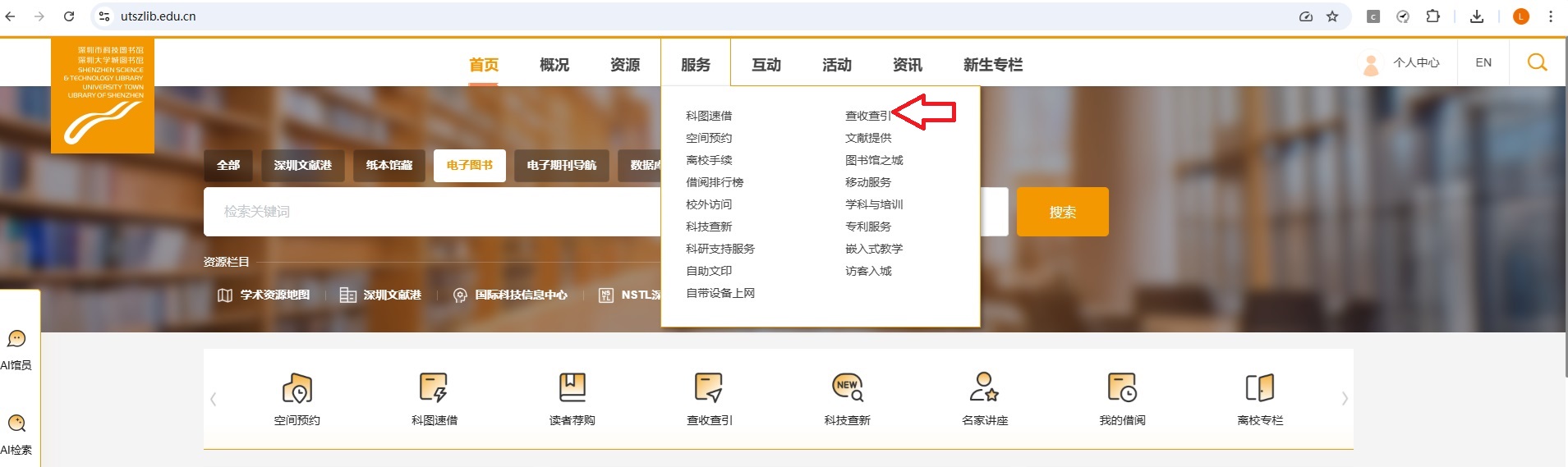
Figure 1. Open the Services menu on the library homepage and click on “Indexing and Citation Report.”
Step 2. Enter the Indexing and Citation Report service page.
On the service page, click on the blue link “Indexing and Citation Report System Entrance.”
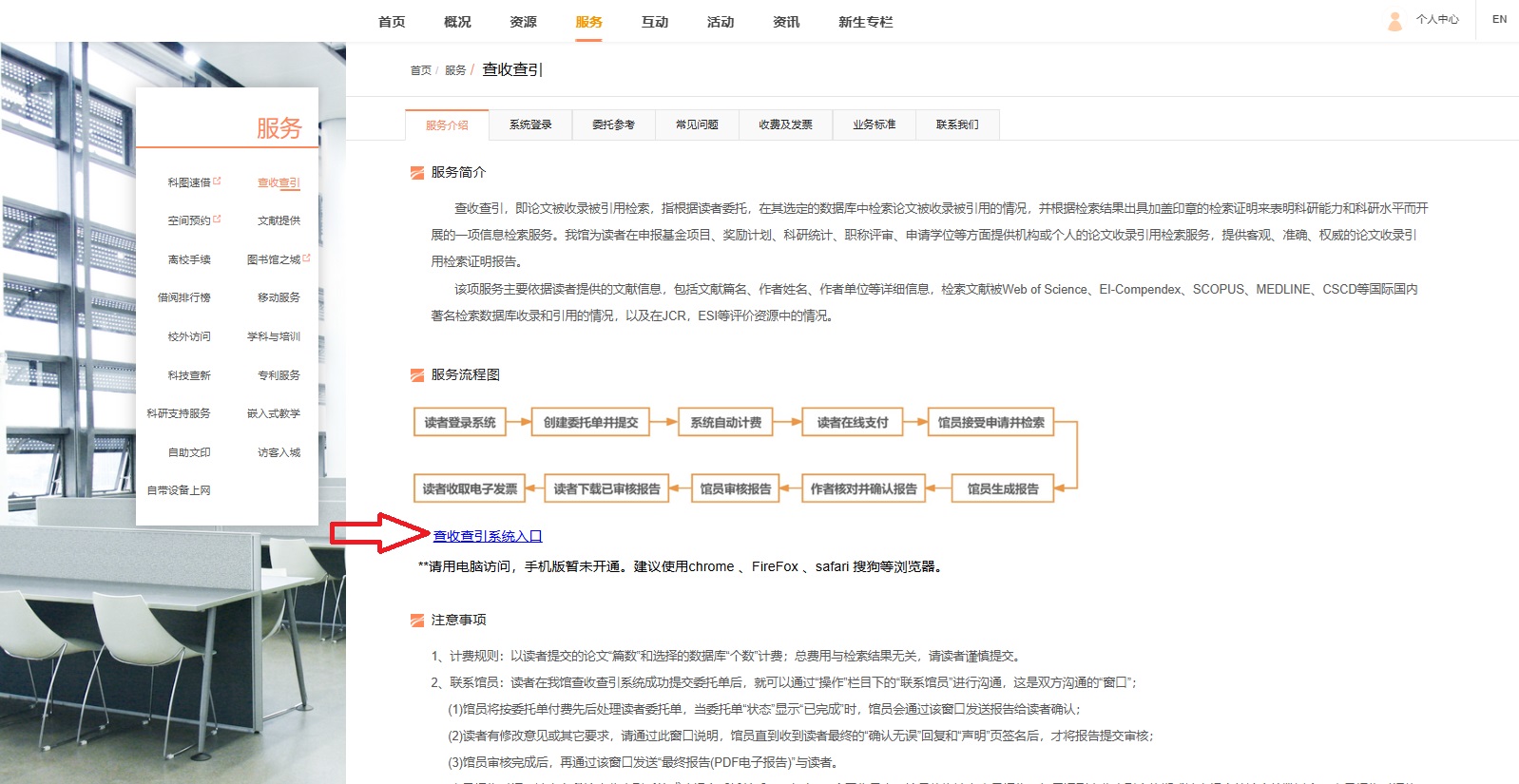
Figure 2. On the service page, click on “Indexing and Citation Report System Entrance.”
Step 3. Click on “Access Link.”
On the database page, click on the green “Access Link” button on the right.
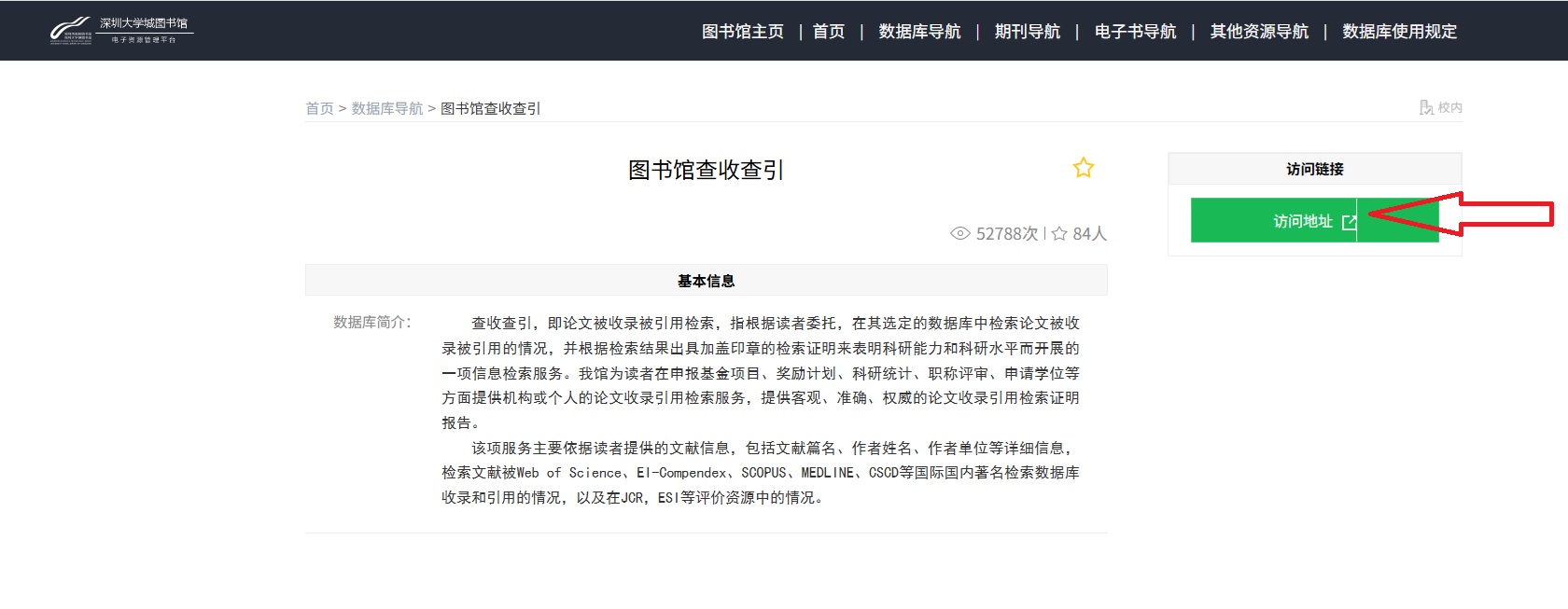
Figure 3. Click the green “Access Link” button to continue.
Step 4. Log in through the Unified Authentication platform.
After you click on “Access Link,” the system will redirect you to the Unified Authentication Platform.
Teachers and students from Tsinghua University, Peking University, and Harbin Institute of Technology may also click on the icon of their own university under “Three-Universities Teacher/Student Authentication” to enter the system directly.
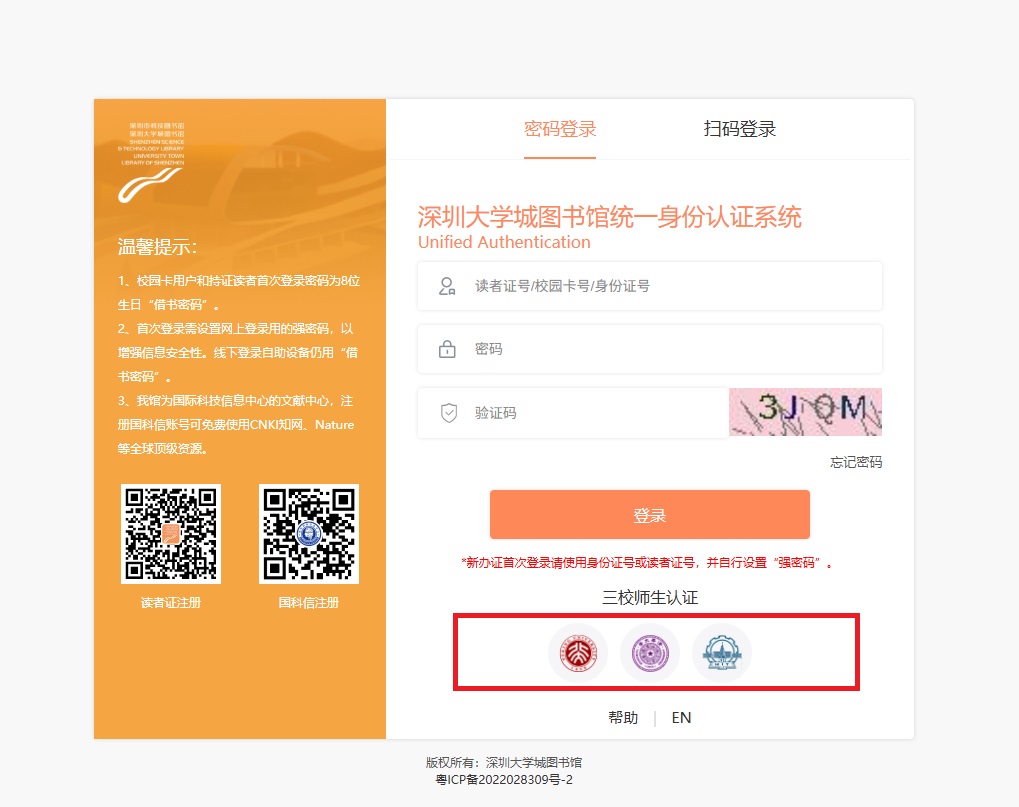
Figure 4. Log in on the Unified Authentication platform. Three-universities teachers/students may also use their university authentication.
Step 5. Create a new commission.
After entering the Indexing and Citation System, click on “Add a New Commission” on the top navigation bar.
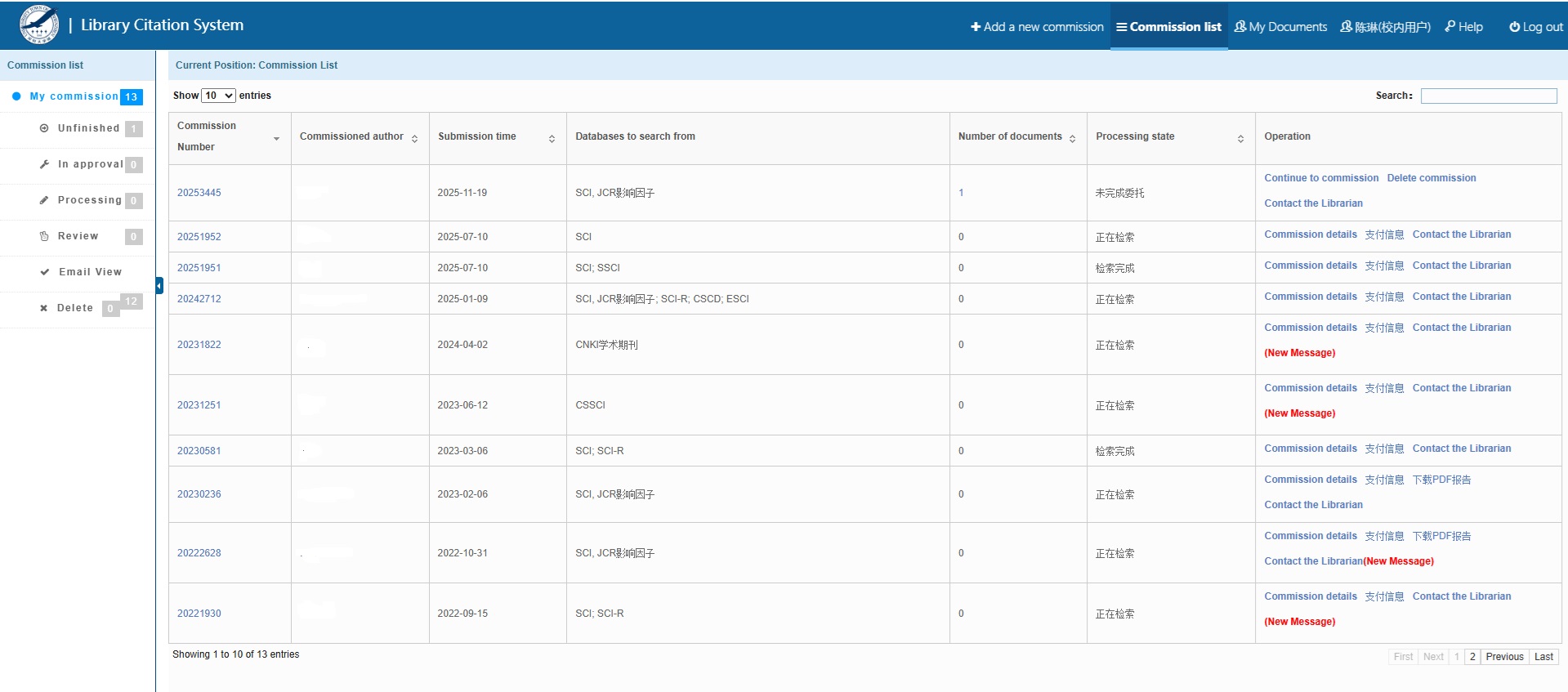
Figure 5. Click “Add a new commission” to start a new request.
Step 6. Fill in the Basic Information page.
Complete all the required information and click on “Next.”
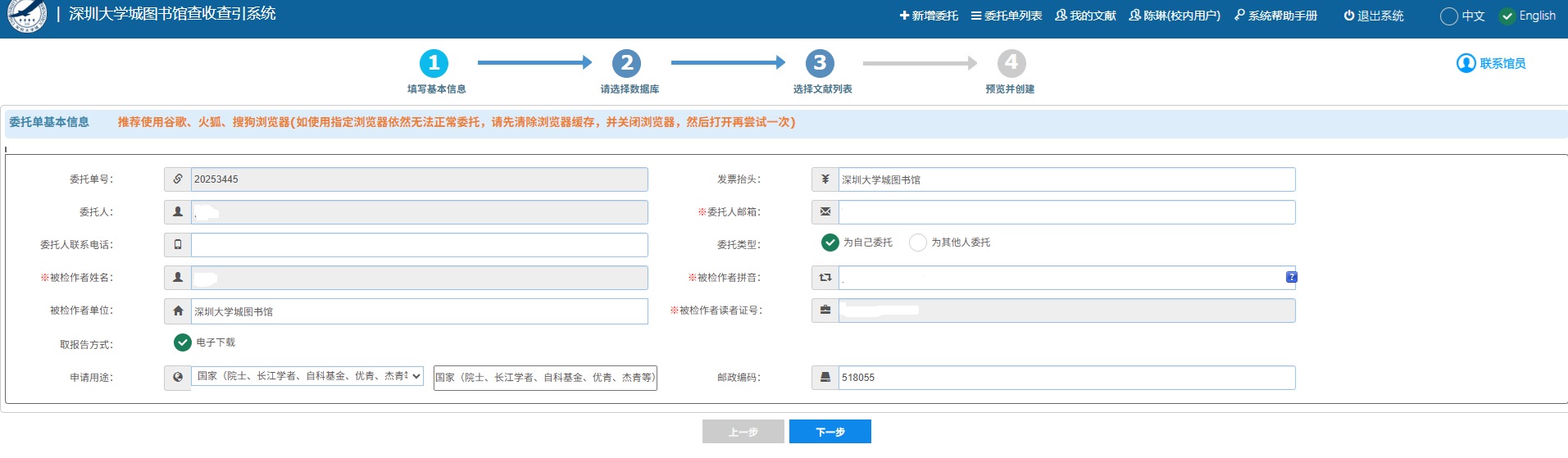
Figure 6. Fill in the required information on the Basic Information page and click “Next.”
Step 7. Select the database(s) to search.
Choose the database(s) that are relevant to your paper, then click on “Next.”
If you are unsure which database to select, contact the librarian before submitting the request.
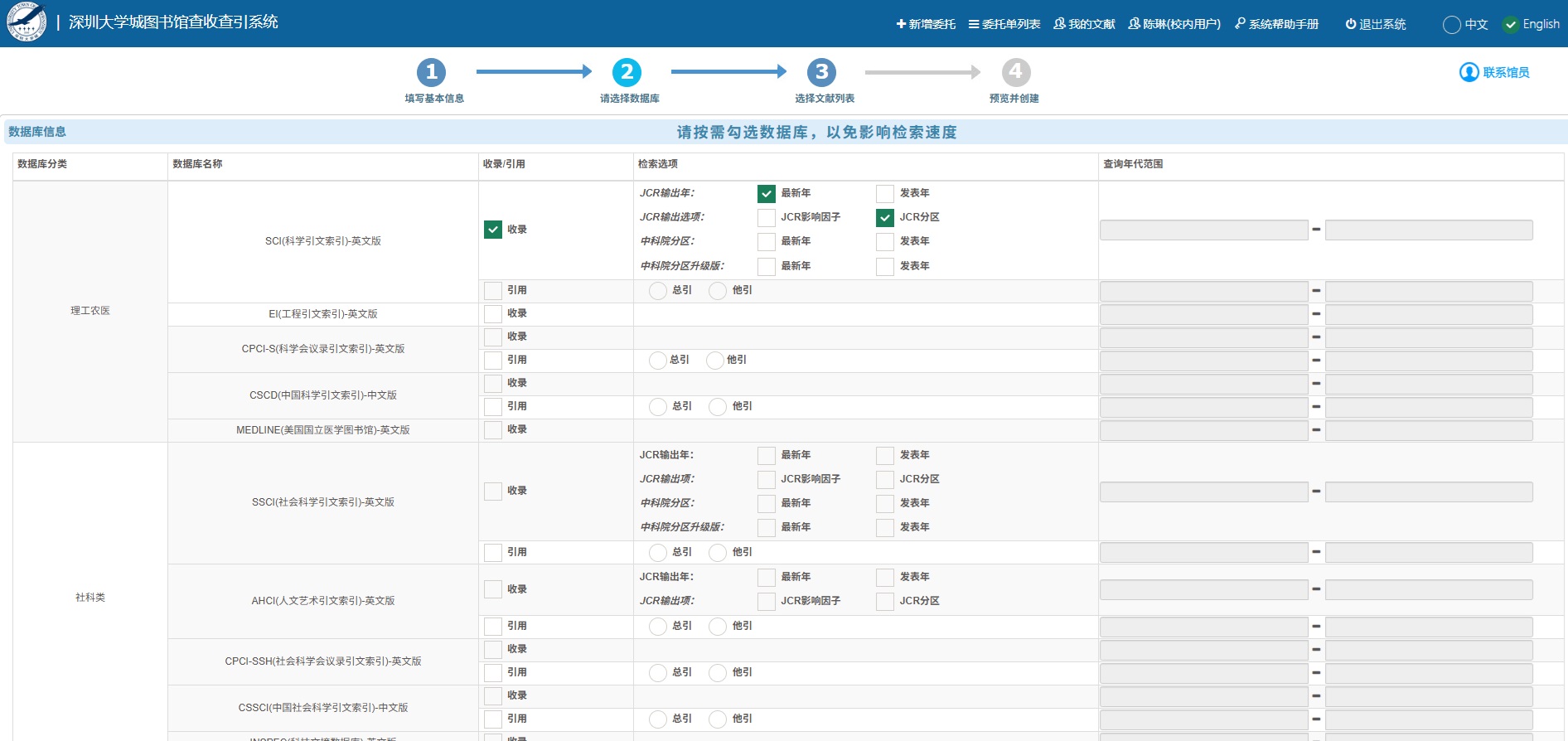
Figure 7. Select the relevant database(s) for your paper and click “Next.”
Step 8. Add your publication information.
On the Select Publication List Page, the recommended method is File Import, which supports BibTeX and Excel formats.
•You may also choose Manual Input if needed.
• File Import: Choose the template type, check the sample format, select the file, and import it.
• Manual Input: Enter the bibliographic information manually and click “Yes” to save the record.
After the publication information has been added successfully, click “Next.”
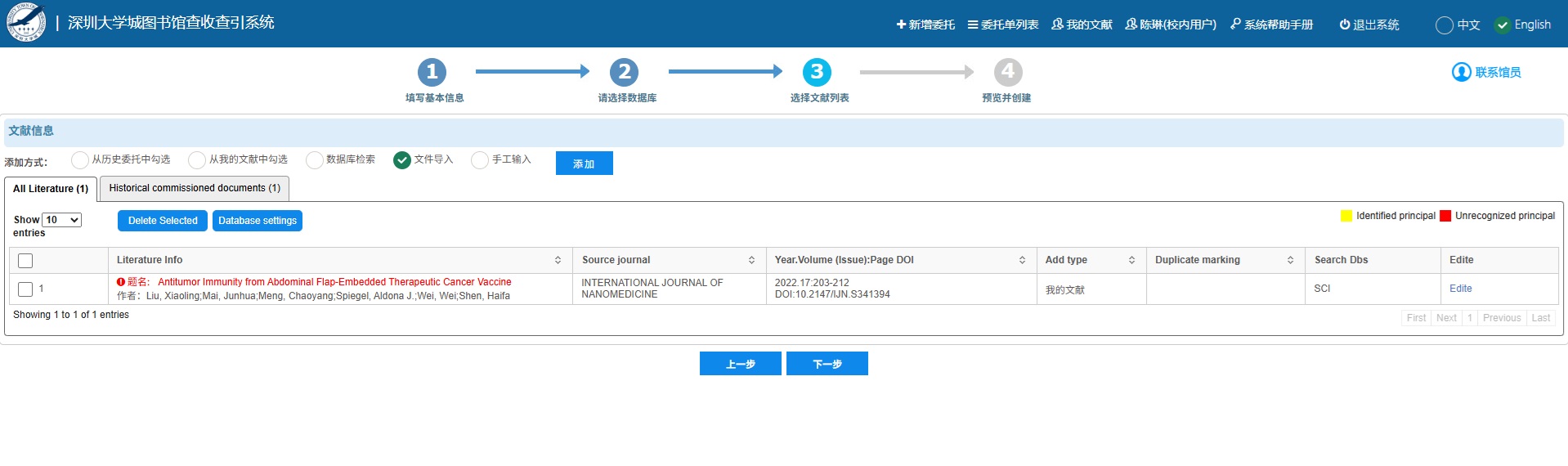
Figure 8. Add your publication information on the Select Publication List page.
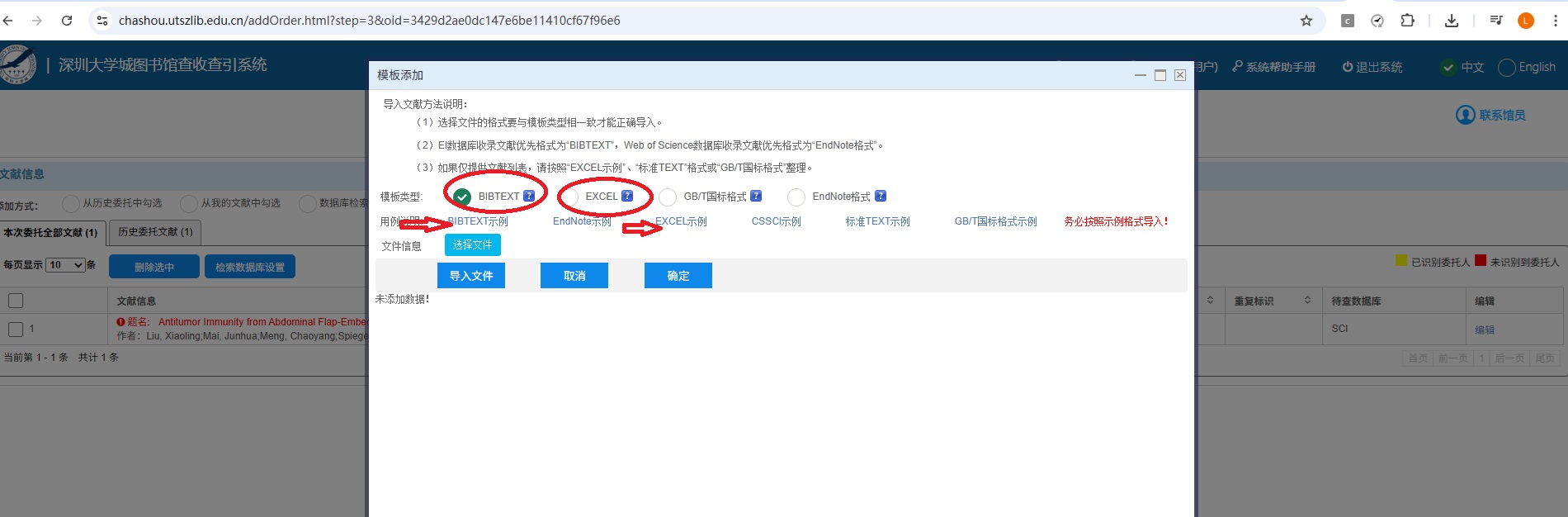
Figure 9. File Import window: choose the template type and check the sample format before uploading the file.
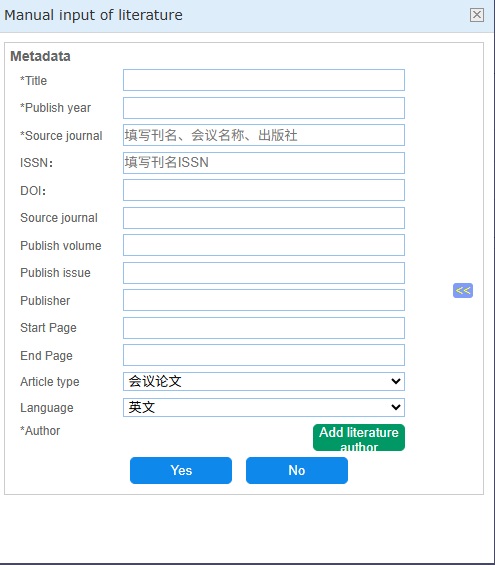
Figure 10. Manual Input window: enter the bibliographic information of the publication manually.
Step 9. Review the information and submit the commission.
On the Preview and Create Page, check the Basic Information, selected database(s), and publication list.
If everything is correct, click “Submit Commission.”
If you need to add a note after submission, click “Contact the Librarian.”
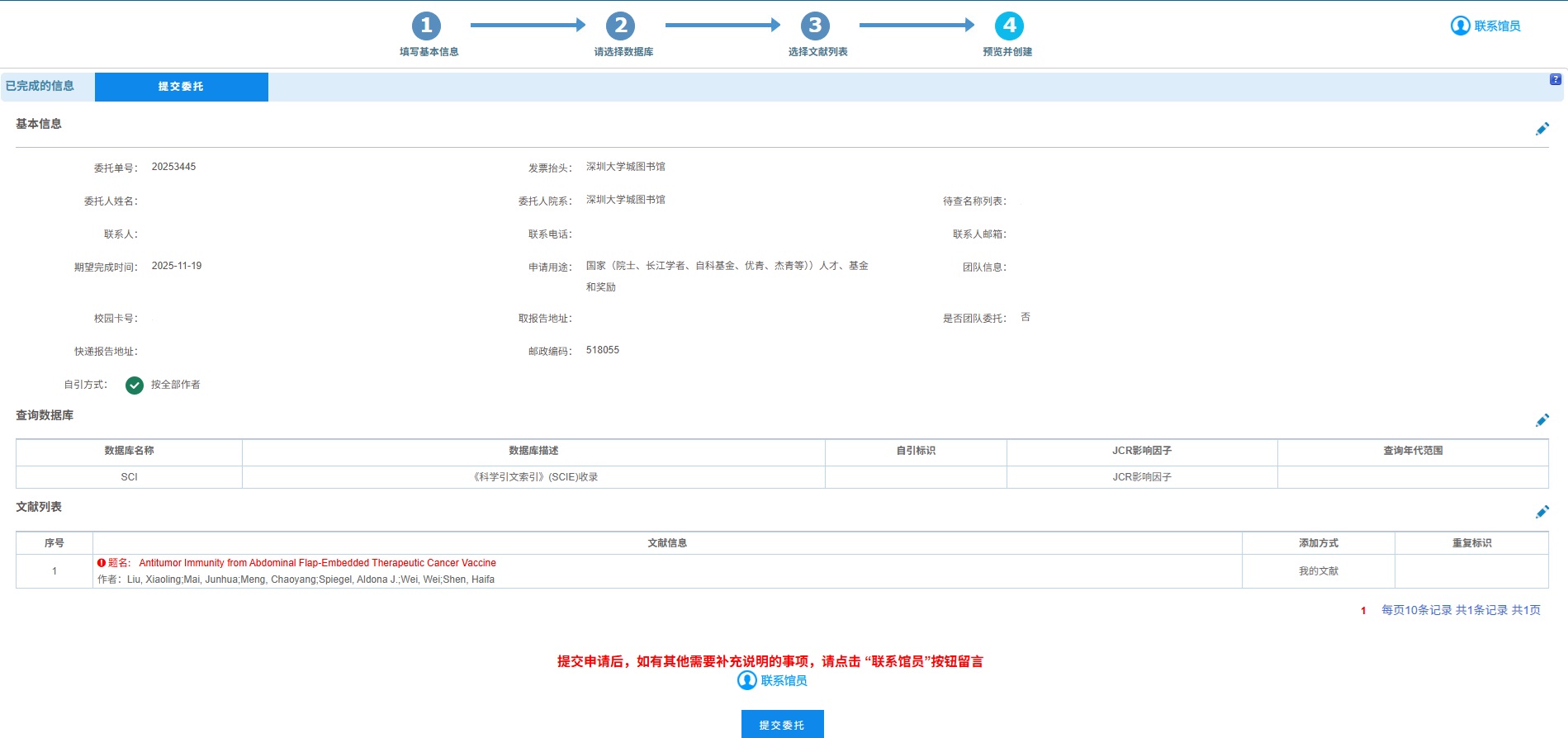
Figure 11. Review the information on the Preview and Create page and click “Submit Commission.”
Step 10. Complete the online payment.
After submission, a payment statement will appear, showing the billed items and your total amount due.
Click on “Online Payment” to generate the payment QR code, then scan it with your mobile phone to complete the payment.
After payment is completed, wait for the system to refresh the payment status automatically. Do not make duplicate payments.
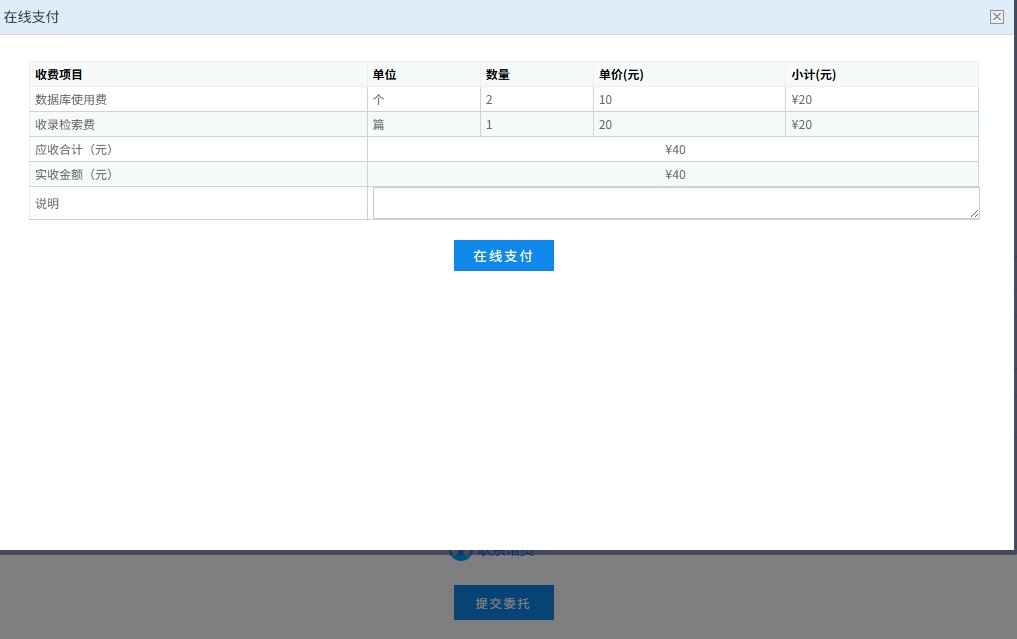
Figure 12. Review the payment statement and click “Online Payment.”
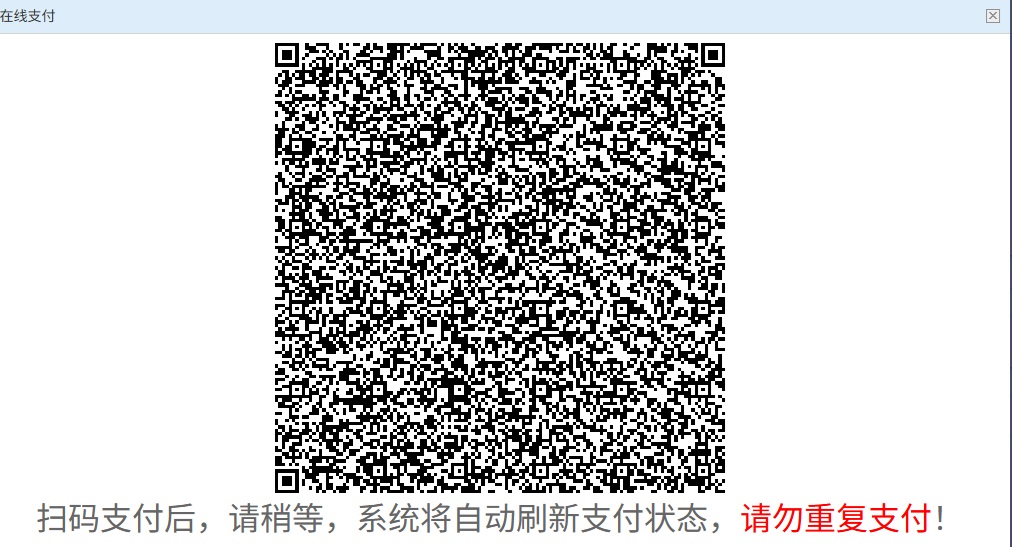
Figure 13. Scan the QR code to complete the payment.
Need help?
If you have any questions about indexing status, database selection, or the submission process, please contact the librarian for assistance.